

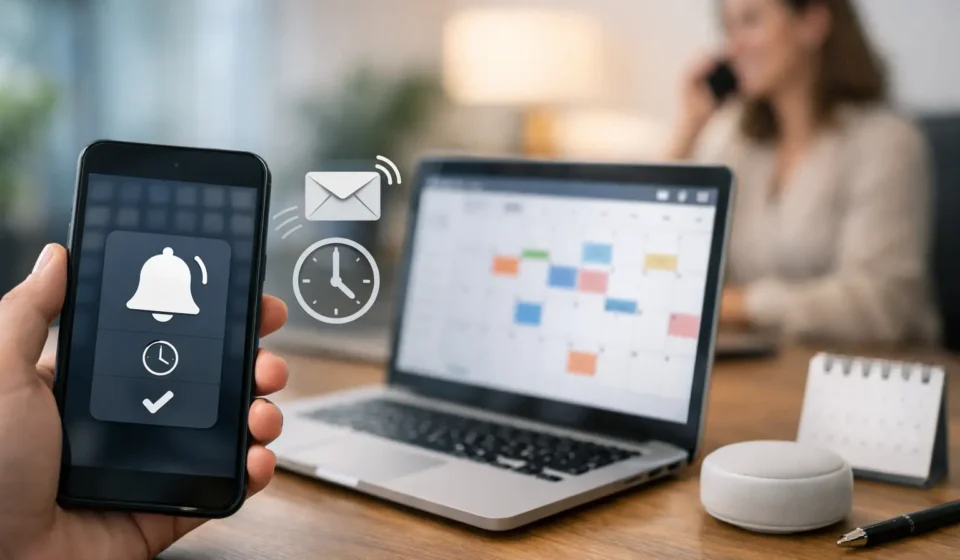
How to Automate Appointment Reminders for Local Businesses
A missed appointment is more than an empty slot on the calendar. For a local practice or service business, it can mean lost revenue, staff downtime, and a rushed attempt to fill the opening at the last minute. Learning how to automate appointment reminders gives your business a practical way to protect booked time without asking your team to manually text, email, or call every customer.
The goal is not to send more messages for the sake of it. It is to send the right reminder, through the right channel, at the right time, with a simple action the customer can take. When scheduling, customer records, and follow-up work together, reminders become a reliable part of your operations instead of another task on someone’s daily checklist.
Start With a Connected Scheduling System
Appointment reminder automation works best when it begins with the calendar itself. Your scheduling tool should automatically create or update a customer record when someone books, reschedules, or cancels. That record should include the appointment type, date and time, location or meeting link, preferred contact details, and any relevant staff member.
Without that connection, automation can create confusion. A customer may receive a reminder for an appointment they already moved, or a staff member may still be preparing for a canceled visit. A connected scheduling and CRM system keeps the appointment status current and gives your reminders accurate information to work from.
For many small businesses, the simplest setup is one platform that handles online scheduling, customer management, SMS, and email. It reduces the need to move data between disconnected tools and makes it easier for staff to see the same customer history.
Before building any messages, decide which events should trigger communication. A new booking should trigger a confirmation. A reschedule should trigger an updated confirmation. A cancellation should stop future reminders and, when appropriate, begin a rebooking follow-up. These small rules prevent the system from feeling impersonal or out of sync.
How to Automate Appointment Reminders Step by Step
The most effective reminder workflows are straightforward. Start with a basic sequence, test it for a few weeks, then adjust based on no-show rates, customer feedback, and the type of appointments you offer.
1. Send an immediate confirmation
The first message should go out immediately after booking. It reassures the customer that the appointment is reserved and gives them a chance to spot an incorrect date, time, or service selection early.
Keep the confirmation clear: include the business name, appointment date and time, location or virtual meeting instructions, and a direct way to reschedule or cancel. If your business has a cancellation policy, this is also the right place to state it in plain language.
For example: “Your appointment with Northside Wellness is confirmed for Tuesday, May 14 at 3:00 p.m. Reply or use the link in this message if you need to reschedule.”
2. Choose timing based on the appointment
A common starting point is an email reminder 48 to 72 hours before the appointment, followed by an SMS reminder 24 hours before. A final short text two to three hours before can work well for high-value appointments, same-day services, or businesses that regularly see last-minute no-shows.
Timing depends on your customers. A financial advisor scheduling a planning meeting may need a reminder several days in advance because clients must gather documents. An acupuncture practice may benefit from a next-day text because appointments are recurring and often booked weeks ahead. A home service provider may need a morning-of message that confirms the arrival window and lets the customer know how to prepare.
Avoid sending too many reminders. Three well-timed messages are usually more useful than five repetitive ones. If customers begin opting out because the messages feel excessive, the workflow is working against you.
3. Use SMS for urgency and email for details
Text messages are often the fastest way to get a customer’s attention. They are especially useful for short reminders, confirmation requests, schedule changes, and openings that need to be filled quickly. Email is better for longer information, such as intake forms, parking instructions, service preparation, or policy details.
Using both channels gives customers a better experience without forcing one message to do every job. The text can say, “Reminder: Your appointment is tomorrow at 10:00 a.m. Reply C to confirm or use this link to reschedule.” The email can provide the address, what to bring, and a map or instructions added through your scheduling system.
Make sure you have appropriate consent before sending marketing or reminder texts and provide a clear opt-out option. Appointment reminders are operational messages, but businesses should still follow applicable texting rules and use a platform designed to manage consent properly.
4. Make confirming or rescheduling easy
A reminder only reduces no-shows if the customer can act on it quickly. Every message should have one obvious next step: confirm, reschedule, cancel, or contact your office.
A self-service rescheduling link is often one of the highest-value features in the entire workflow. Customers can move an appointment when it becomes inconvenient, and your team does not have to spend time playing phone tag. The calendar updates automatically, the original reminder sequence stops, and a new sequence begins for the revised appointment.
For businesses with limited availability, consider placing a cancellation into an internal alert or waitlist workflow. If a client cancels a Thursday afternoon appointment, your system can notify staff or send an invitation to qualified customers who asked for an earlier opening. This helps turn cancellations into recovered revenue.
Build Messages That Sound Like Your Business
Automation should save time, not make your communication sound generic. Use your business name, a recognizable sender number or email address, and language your customers would hear from your team.
Keep messages short and specific. “Hi Jamie, this is a reminder about your tax consultation tomorrow at 1:30 p.m.” is stronger than “You have an upcoming event.” Include only the information needed to help them arrive prepared and on time.
Personalization should be useful, not excessive. A first name, service name, and appointment time are usually enough. Avoid adding sensitive personal details to SMS messages, particularly for wellness, financial, legal, or other private services. When more detailed information is necessary, direct customers to a secure portal or have staff follow up personally.
It also helps to separate appointment reminders from promotional marketing. A customer who booked a consultation expects confirmation and reminder messages. They may not expect a sales offer in the same text. Keep the purpose of each message clear to build trust and improve response rates.
Automate the Follow-Up Around Missed Appointments
Even the best reminder sequence will not eliminate every no-show. The difference is what happens next.
When someone misses an appointment, an automated workflow can send a respectful message within a set window: “We missed you today. If you would like to reschedule, choose a new time here or call our office.” For a relationship-based business, a staff task can be created at the same time so someone can personally check in when appropriate.
This approach is more effective than simply marking the appointment as lost. It gives customers a low-pressure path back to your calendar while allowing your team to focus personal outreach on high-value clients or situations that need attention.
You can also automate internal notifications. If a new lead books a first consultation, notify the assigned team member. If a customer has not confirmed within 24 hours, flag the appointment for a quick call. If a customer cancels repeatedly, route the record to a manager before another appointment is scheduled. Automation does not replace judgment, but it makes sure important moments do not get missed.
Measure Results and Improve the Workflow
The right workflow should produce measurable improvements. Track your no-show rate before and after implementing reminders, then look at confirmation rates, cancellations, reschedules, and appointments recovered from follow-up messages.
If no-shows remain high, test one variable at a time. You might move the first reminder from 24 hours to 48 hours, add a same-day SMS, simplify the rescheduling process, or revise a message that customers are ignoring. Do not assume more communication is always the answer. For some audiences, a better message or a clearer policy makes a bigger difference than another reminder.
Also review staff feedback. If employees are still manually checking calendars, copying appointment details into texts, or chasing unconfirmed bookings, there may be a gap between your scheduling tool and CRM. The best automation reduces repetitive work for the team while keeping customers informed.
Appointment reminders are a small system with a meaningful effect on revenue, customer experience, and staff time. Start with an accurate calendar, a clear confirmation, and a simple SMS and email sequence. Once those fundamentals are in place, every booked appointment has a better chance of becoming a completed one – and your team has more time to serve the customers who show up.